

Modern Cart Not Working? 7 Common Problems and How to Fix Them
You clicked the cart icon, and nothing happened. Or the drawer opened, but the product you just added is nowhere to be seen. Or a coupon that should work returns an error. If you run a WooCommerce store and use Modern Cart, you have probably met at least one of these moments — usually right after a customer messages you saying they cannot check out.
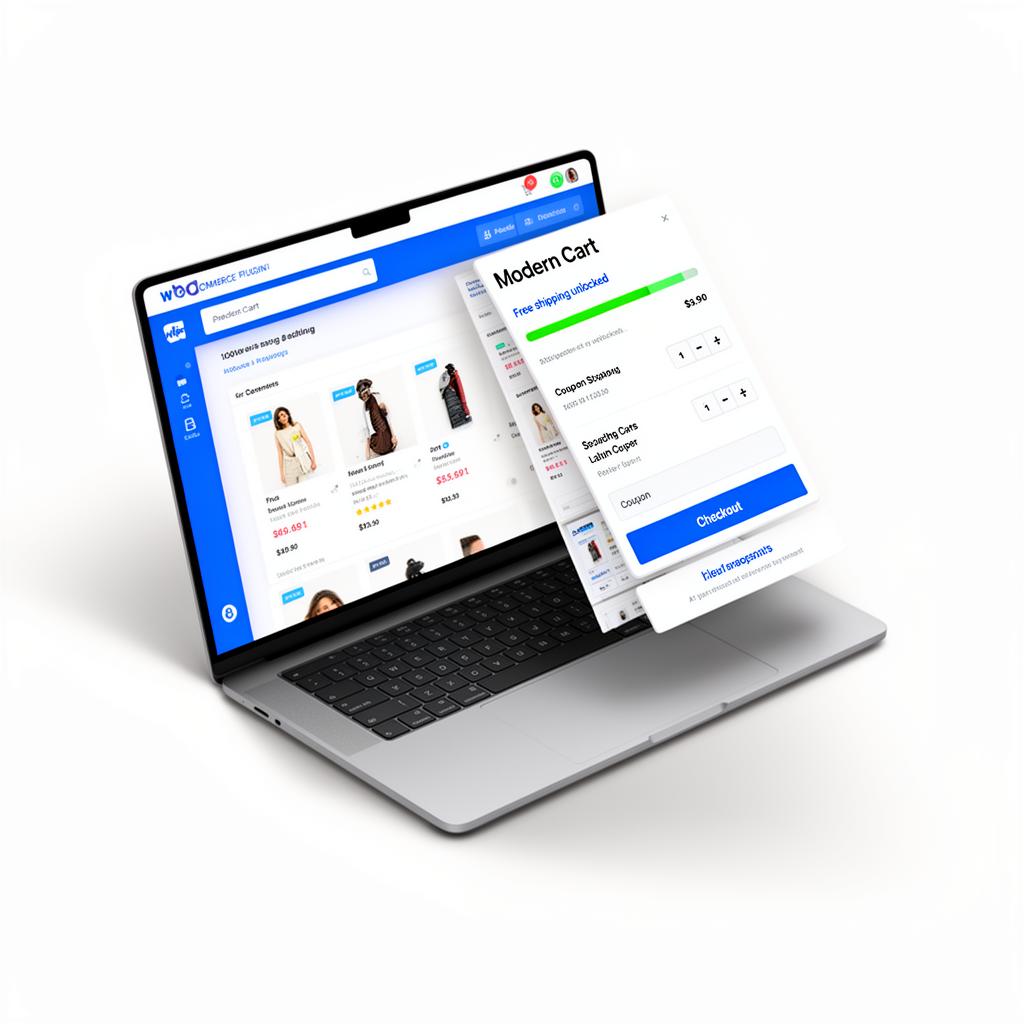
Modern Cart, by CartFlows / Brainstorm Force (the team behind Astra), replaces the standard WooCommerce cart page with a slide-out cart drawer or popup cart. It adds a floating cart icon with a live item count, AJAX add, remove, quantity and coupon actions without a page reload, a free-shipping progress bar, a cart rewards progress bar, a built-in coupon form, in-cart upsell and cross-sell in the Pro version, and deep customization of colors, labels and icons. It is mobile-first and works with simple, variable, grouped and subscription products, and with themes including Astra, Storefront, GeneratePress, OceanWP, Blocksy, Kadence, Flatsome, Hello Elementor, Neve and Bricks.
This guide walks through the seven problems store owners report most often, with the likely cause of each and a fix you can apply yourself. Work through them in order, testing the cart after each change, so you know exactly which fix solved it.
Buy Modern Cart: message us on WhatsApp https://wa.me/8801919052411 with the product name — bKash/Nagad accepted, activation within minutes.
1. The Cart Drawer Does Not Open When You Click the Icon
This is the most reported problem, and it is also the most misleading, because the cart itself is usually fine — the click is simply not reaching it.
Likely causes. A JavaScript error from another plugin or your theme stops Modern Cart's script from running. Or the floating cart icon is hidden behind another element, so your clicks land on something else. Or a setting in your theme disables the mini-cart, and Modern Cart is waiting for a trigger that never fires.
How to fix it. First, open your browser's developer console (F12 in Chrome) and click the cart icon. If you see a red JavaScript error, note which file it comes from — that is your culprit. Deactivate the plugin named in the error, test the cart, and if it works, you have found the conflict. Re-enable the plugin and look for its setting that loads its own cart or checkout script, or ask its developer about the conflict.
If there is no console error, check whether the icon is actually clickable. Right-click the icon and choose Inspect: if another element sits on top of it, you will see it in the markup. A common offender is a sticky header or a chat widget with a high z-index. Modern Cart's own settings let you adjust the icon position — move it, or lower the competing element's stacking order in your theme customizer.
2. Add to Cart Works, But the Drawer Shows the Old Contents
You add a product, the drawer slides out, and it still shows yesterday's cart — or an empty cart. Refreshing the page fixes it. This is the classic symptom of stale cart fragments.
Likely cause. WooCommerce updates the mini-cart using "cart fragments," small AJAX requests that refresh cart data without reloading the page. Caching plugins and some hosts aggressively cache these fragments, or disable the AJAX call entirely to save server resources. When fragments are stale, the drawer shows whatever was cached.
How to fix it. In your caching plugin, exclude WooCommerce's cart, checkout and account pages from caching — most caching plugins ship with WooCommerce exclusions, but check they are actually turned on. Also exclude the woocommerce_cart_hash and woocommerce_items_in_cart cookies, and the /?wc-ajax=get_refreshed_fragments request, from caching.
Then test in a private browser window. Caching problems often hide behind your own logged-in session, so an incognito window with a fresh cart is the honest test.
3. AJAX Add to Cart Fails or Falls Back to a Full Page Reload
Instead of the smooth drawer sliding out, the whole page reloads — or nothing happens at all and the product never lands in the cart.
Likely causes. The "Enable AJAX add to cart buttons on archives" setting in WooCommerce → Settings → Products is off, so archive pages submit the old-fashioned way. Or a plugin is filtering the add-to-cart button and stripping the AJAX classes Modern Cart depends on.
How to fix it. Turn on AJAX add to cart in WooCommerce settings and save. Then test on a simple product first. If simple products work and variable products do not, the problem is the variation selection: Modern Cart can only add a variable product once a valid variation is chosen.
If no product works by AJAX, switch temporarily to a default theme such as Storefront and test again. If AJAX works on Storefront, your theme is overriding the add-to-cart button template — check for a woocommerce folder in your theme and compare its templates against the WooCommerce defaults. A template from an old WooCommerce version is a frequent culprit after an update.
4. The Coupon Form Rejects a Valid Coupon
A customer types a coupon code into the drawer's built-in coupon form and gets "Coupon does not exist" or "This coupon cannot be applied," even though the same code works on the checkout page.
Likely causes. The coupon has a restriction the drawer test violates — a minimum spend, a usage limit already reached, an expiry date, or a restriction to certain products or categories. Or the coupon was created after the cart fragments were cached, so the drawer is validating against old data. Or the coupon requires the customer to be logged in, and they are browsing as a guest.
How to fix it. First, reproduce the problem yourself with the exact cart contents the customer had. Open WooCommerce → Marketing → Coupons, open the coupon, and read every restriction: usage limit, expiry, minimum and maximum spend, product and category limits, and whether it is limited to specific users.
Then clear the cart fragments as described in problem 2 and try again in a private window. If the coupon works at checkout but not in the drawer, update Modern Cart and WooCommerce to their latest versions; the drawer coupon form and the checkout coupon form should validate the same way, and a mismatch usually means one of them is out of date.
5. The Floating Cart Icon Overlaps Your Header, Menu or Chat Button
The icon sits on top of your logo on mobile, covers the menu button, or hides behind your WhatsApp chat widget. On a phone, where screen space is tight, this can make the menu unusable.
Likely cause. Modern Cart positions the floating icon with fixed positioning, and your theme or another fixed element claims the same corner. Mobile headers often grow taller than expected, and a chat widget in the bottom-right corner competes for exactly the spot most stores put the cart icon.
How to fix it. Open Modern Cart's settings and change the icon's position — bottom-left is often free on stores that run a chat widget bottom-right, and vice versa. You can also change the icon size and the offset from the screen edge. If your theme has a header cart icon of its own, hide one of them; two cart icons confuse customers.
For a stubborn overlap, add a small CSS rule in the Customizer's Additional CSS targeting the floating icon's container, increasing its bottom or side offset until it clears the competing element. Test on a real phone, not just a desktop browser narrowed down.
6. The Free-Shipping or Rewards Progress Bar Shows the Wrong Amount
The bar says the customer is ৳500 away from free shipping when the cart total is clearly past the threshold, or the rewards bar never moves.
Likely cause. The bar is reading the wrong total. Free-shipping thresholds in WooCommerce are usually calculated on the cart subtotal before taxes and shipping, and sometimes before or after discounts depending on your shipping zone settings. If Modern Cart's bar is configured with a different threshold than your shipping zone, the two will disagree forever.
How to fix it. Open WooCommerce → Settings → Shipping, open the zone, and read the free-shipping method's minimum order amount exactly. Then open Modern Cart's settings and set the progress bar threshold to the same number. Check whether your shipping method counts the total before or after discounts and set the bar to match.
7. Variable Products, Subscriptions or Grouped Products Behave Strangely
A variable product adds the wrong variation, a subscription product loses its billing details in the drawer, or a grouped product's quantities do not add up.
Likely cause. Modern Cart supports simple, variable, grouped and subscription products, but each type adds its product to the cart differently. A plugin that modifies the product page — a variation swatches plugin, a subscription customizer, a bundle builder — can change the data Modern Cart receives.
How to fix it. Test with the extra product-page plugin deactivated. If the problem disappears, the conflict is confirmed. Check that plugin's settings for an option like "AJAX add to cart" or "override add to cart" and turn it off, or update both plugins — variation and subscription handling changes often between WooCommerce versions, and an outdated companion plugin is the usual cause.
Pre-Launch Checklist: Test Before Your Customers Do
Run through this list every time you update Modern Cart, WooCommerce, your theme, or any plugin that touches the cart. It takes ten minutes and saves you the customer messages.
- Desktop and mobile: in a private window on both, add a simple product and confirm the drawer opens with the right item and price.
- Variable product: choose a variation, add it, and confirm the drawer shows the chosen variation.
- Quantity and remove: change a quantity and remove an item, confirming totals update without a reload.
- Coupon: apply a real coupon in the drawer and confirm the discount appears.
- Free-shipping bar: add products until the threshold is crossed and confirm the bar reaches 100 percent.
- Checkout handoff: click through to checkout from the drawer and confirm the cart contents arrive intact.
- Cache check: repeat the test after clearing your cache, and again an hour later, to catch stale fragments.
- Console check: open the developer console during the test and confirm there are no red JavaScript errors.
Most Modern Cart problems are not Modern Cart problems. They are a cache rule, a stale template, or a second plugin claiming the same button. Fix the disagreement, and the drawer does what it was built to do: let customers keep shopping without leaving the page they are on. The licensed version costs ৳1,000/year — price may change — see the product page for the current price — and the free Modern Cart Starter is available on wordpress.org if you want to try the drawer first.
Frequently Asked Questions
Why does my cart drawer open empty after I add a product?
Stale cart fragments are the usual cause. Exclude the cart, checkout and account pages, the WooCommerce cart cookies and the get_refreshed_fragments AJAX request from every layer of caching, then test in a private window.
My coupon works at checkout but not in the cart drawer. Is the coupon broken? Probably not. Check the coupon's restrictions — minimum spend, expiry, usage limit, product limits — against the exact cart you tested with, then clear cached fragments and retest.
Can Modern Cart break my checkout? Modern Cart changes the cart display, not the checkout itself, so checkout problems after installing it usually trace back to a JavaScript error or a plugin conflict rather than to Modern Cart. Run the pre-launch checklist above after every update and you will catch conflicts before customers do.
Buy Modern Cart: message us on WhatsApp https://wa.me/8801919052411 with the product name — bKash/Nagad accepted, activation within minutes.


